It’s release night. The new app version passed every test in staging, so you push it to every server at once. Ten minutes later, error rates climb, checkout slows to a crawl, and every single user is stuck with the same bug while your team scrambles to redeploy the old build.
That scenario is expensive. According to Annual Outage Analysis 2026, 57% of organizations put the cost of their latest major outage above $100,000. A rolling deployment is one of the most widely used ways to avoid the all-at-once release that turns one bad build into a full outage. This is because it moves your application to the new version in small batches of servers.
In this guide, you’ll learn how a rolling deployment works, what to check before you run one, how it compares with blue-green and canary deployments, how to roll back when a batch misbehaves, and how feature flags give you a faster exit than redeploying.
What is rolling deployment?
A rolling deployment is a release strategy that replaces the old version of an application with the new version a few servers (or instances) at a time. A load balancer keeps routing traffic to healthy instances while each batch updates, so users keep getting served from start to finish.
Teams use it because it cuts downtime without the cost of running a second, identical production environment.
Say your checkout service runs on 12 servers. You update 3, wait for them to pass their health checks, and only then touch the next 3. If the new build is broken, at most a quarter of your traffic hits it, and only until you stop the rollout. If you’ve shipped on a modern cloud or container platform, you’ve probably used one already, since it’s usually the out-of-the-box option.
How the rolling deployment process works
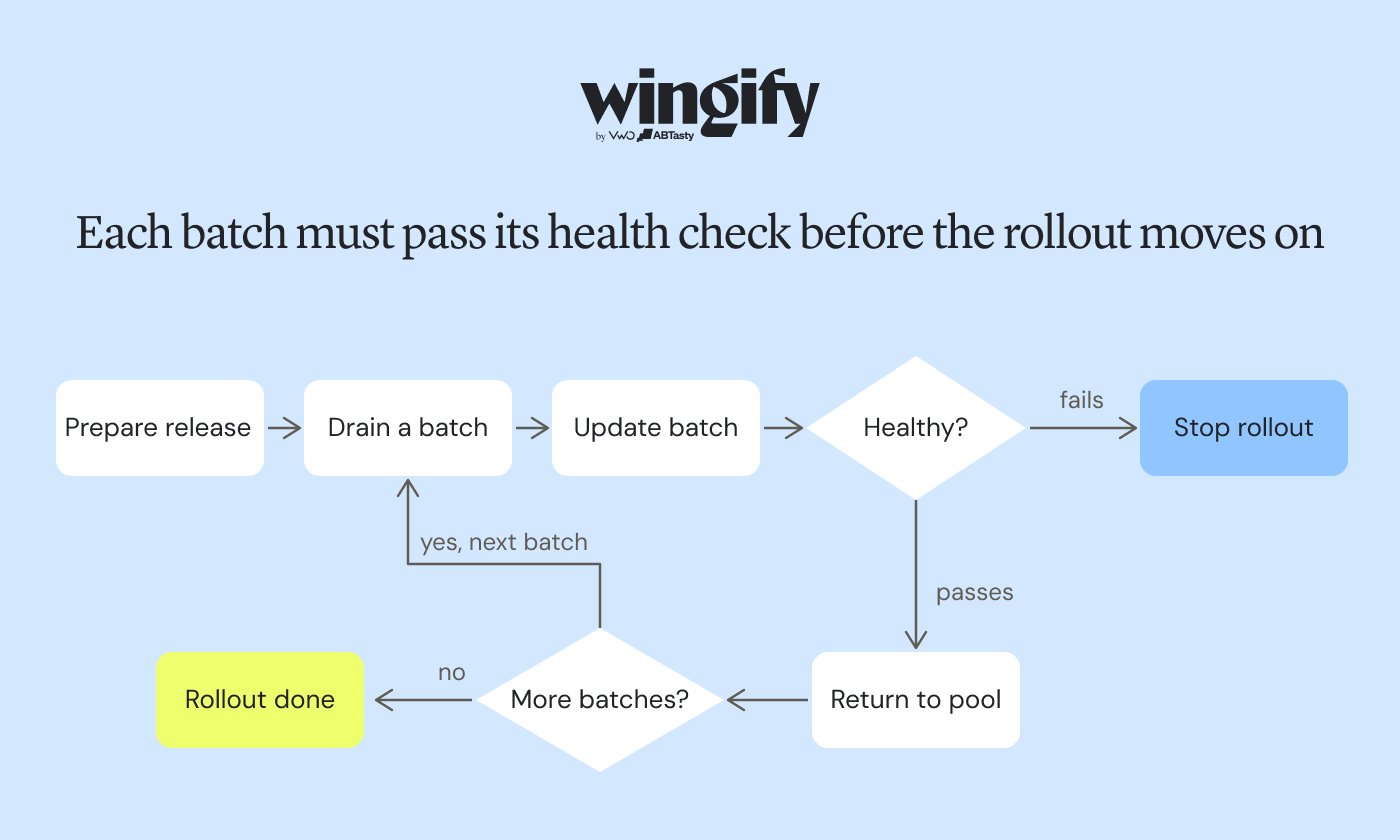
Every rolling deployment repeats the same loop until no instance runs the old version. Here’s the sequence a deployment tool or orchestrator follows for each batch.
Prepare the release. Build the new version, push the artifact or container image to your registry, and set the batch size (for example, 25% of instances per wave).
Drain a batch. The load balancer stops routing new requests to the first batch and lets in-flight requests finish, so no user is cut off mid-request.
Update the batch. The old version is stopped on those instances and the new version starts. On Kubernetes, this means new pods (the units that run your app) are created with the new version and old pods are terminated.
Run health checks. Each updated instance must pass its readiness checks (responding to requests, connecting to the database, loading config) before it counts as healthy.
Return the batch to the pool. Healthy instances rejoin the load balancer and start serving real users on the new version.
Repeat. The next batch drains and updates, and the cycle continues until the full rollout is complete. If a batch fails its health checks, the rollout stops instead of moving forward.
The loop each batch goes through, from draining to rejoining the pool.
One detail shapes every decision that follows. Between the first batch and the last, both the old version and the new version serve production traffic at the same time. A user can hit a new instance on one request and an old instance on the next, so the two versions have to work side by side.
Rolling deployment advantages and disadvantages
Rolling deployments trade speed and simplicity of rollback for lower cost and a smaller blast radius. The table below sets out both sides.
Advantages
Disadvantages
Near-zero downtime, since some instances always serve traffic
Old and new versions run side by side, so changes must be backward compatible
No second environment to pay for, which keeps resource usage low
There’s no quick undo, since reverting means a second batch-by-batch rollout
A bug shows up on a handful of servers before it spreads
A full rollout takes longer than an instant traffic switch
Built into most orchestrators as the default strategy
Users may see different versions during the update window
Each batch is a checkpoint where you can pause or stop
You can’t choose which users get the new version, because batches are picked by server
That last row matters more than it looks. A rolling deployment limits how many servers run new code, but it can’t limit exposure to a specific audience, such as internal users or a single region. That’s the gap feature flags fill, which we’ll come back to later.
What to check before running a rolling deployment
Run through this checklist before you start the first batch.
Backward compatibility. Can the old version read data, events, and API responses produced by the new version, and the other way around? If v2 renames a field that v1 still expects, every user bouncing between instances will hit errors.
Database schema changes. Split breaking schema changes across releases using an expand-and-contract approach. Add the new column first, deploy code that writes to both, then remove the old column in a later release once no instance depends on it.
Session persistence. If sessions live in server memory, draining an instance logs users out. Move sessions to a shared store, or configure connection draining long enough for active sessions to finish.
Health checks. Confirm your readiness checks test what users need (a working database connection, loaded config) rather than just confirming the service has started. A health check that always passes turns a rolling deployment into an all-at-once release in slow motion.
Capacity headroom. With part of the fleet offline, can the remaining instances absorb peak traffic? Schedule large rollouts outside peak hours, or allow surge capacity.
Monitoring and a stop condition. Decide before you start which metrics (error rate, latency, conversion) will pause the rollout, and who makes that call.
Rolling deployment vs blue-green deployment vs canary deployment: Key differences
All three deployment strategies aim to minimize downtime and limit the damage a bad release can do. They differ in what they divide. A rolling deployment divides your servers, a blue-green deployment divides your environments, and a canary deployment divides your traffic.
A blue-green deployment setup keeps two identical production environments side by side, one live and one idle. Live users stay on the blue environment while the new version is deployed to the green environment, where it gets thorough testing away from real traffic. When green is ready, the load balancer switches all traffic over in one move, and blue stays on standby for an instant rollback.
In a canary deployment, a small percentage of real users (often 1% to 5%) is routed to the new version while everyone else stays on the stable version. The team compares error rates and business metrics between the two groups, then gradually increases traffic only if the canary stays healthy.
High-risk changes you want to validate on real users
In practice, the right deployment strategy depends on what a bad release would cost you and what you can afford to run. Your risk tolerance sets how much exposure is acceptable, and your infrastructure budget decides whether a second environment is realistic. That’s why mixed setups are common, with rolling deployments for everyday updates, canary releases for major changes, and blue-green reserved for the handful of systems that can’t tolerate even a minute of degraded service.
When to choose a rolling deployment strategy
A rolling deployment is the best deployment strategy when your application can tolerate two versions running at once and you’d rather not maintain a duplicate environment. Use these two lists to decide.
Use rolling when
Your services are stateless, or state lives in a shared store outside the instances.
The release is backward compatible with the current version, including API contracts and database schema.
You run enough instances that taking a batch offline doesn’t hurt capacity.
Infrastructure budget rules out keeping two identical environments.
You ship several times a week, as teams practicing continuous deployment do, and want a default that needs little setup.
Avoid rolling when
The update includes breaking schema changes or protocol changes that old instances can’t handle.
You need an instant rollback, which favors blue-green.
You want to test the new version on a chosen group of real users first, which favors canary releases or feature flags.
Users stay connected for long stretches, or their sessions live in server memory and would be lost when an instance drains.
Every user must see the same version at the same moment, for example during a coordinated launch or a compliance-driven change.
How to set up a rolling deployment, step by step
The exact commands depend on your platform, but the setup follows the same five steps whether you use a container platform, a cloud auto-scaling group, or a CI/CD pipeline that deploys code to virtual machines.
Choose rolling as the update strategy. Select the rolling option in your deployment platform’s settings, which on many platforms is already the default strategy.
Define readiness and health checks. Add a readiness probe or health endpoint that confirms each new instance can actually serve users before it receives traffic.
Set batch size and surge. Pick how many instances update per wave and how many extra instances can spin up temporarily. Smaller batches catch issues early but make the update process slower.
Connect monitoring and stop conditions. Point dashboards and alerts at error rate, latency, and a business metric, and record the version in your deployment metadata so you can tell which instances run what.
Run the rollout and watch it. Trigger the deployment from your pipeline, follow each batch in your platform’s deployment dashboard, and confirm the last batch is healthy before closing the release.
Rolling back a failed rolling deployment
Rolling back a rolling deployment works the same way the release did, one batch at a time, with the previous version going back out in place of the faulty one. There’s no standby environment to switch to, so recovery is only as fast as your rollout, and any instance not yet reverted keeps serving the bad build.
When a batch fails or metrics dip, follow this sequence.
Pause the rollout. Stop new batches from updating so the problem doesn’t spread.
Assess the damage. Check which instances run the new version, what’s failing, and whether the issue is in the code, the config, or the data.
Revert the updated batches. Redeploy the previous version through your pipeline, batch by batch, until no instance runs the faulty release.
Verify recovery. Keep an eye on error rate, latency, and user-facing metrics until they settle back to normal, and write up the cause before you try again.
One trap catches many teams. Reverting code doesn’t revert data, so a schema change or a data migration that already ran won’t undo itself. That’s another reason to keep breaking schema changes out of the same release as the code that depends on them.
Pro Tip!
Automate the kill switch instead of watching dashboards by hand. In Wingify Feature Management, you can set kill switches to trigger automatically based on defined metrics or timelines, so a misbehaving feature switches off on its own, even after the rolling deployment has finished.
Rolling deployment best practices
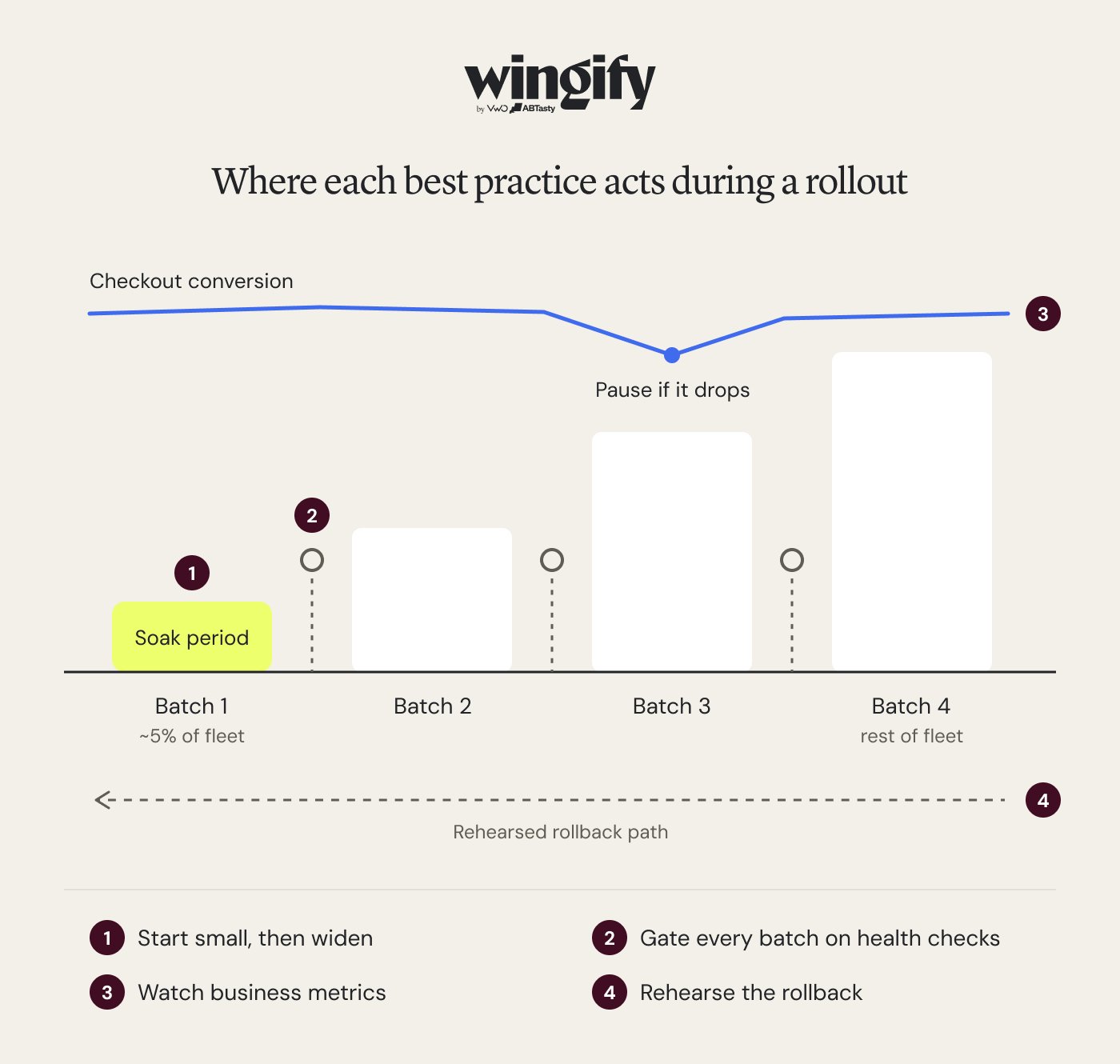
The checklist above gets a rollout started safely, and these four practices keep it safe once batches are moving.
Start with a small first batch, then widen
Gate every batch on automated checks
Watch business metrics, not only server health
Practice the rollback before you need it
1. Start with a small first batch, then widen
The first batch carries the most uncertainty, so make it the smallest.
Send the new version to a single instance, or roughly one server in twenty, then grow each batch as the results stay clean.
Treat the first batch as a short soak period. Give it enough time under real-world conditions to surface slow memory leaks or timeouts.
2. Gate every batch on automated checks
Let the data decide when a rollout moves on, not the clock.
Require each new instance to stay healthy for a set period before it counts as available.
Set a time limit for each batch so a stalled rollout is flagged instead of silently hanging half-finished.
3. Watch business metrics, not only server health
An instance can pass every health check and still ship a broken checkout button.
Track one or two user-facing metrics per release, such as sign-ups or checkout conversion, split by version if your tooling allows it.
Agree in advance how big a dip triggers a pause, for example checkout conversion falling 2% below the previous hour.
Pro Tip!
Define your metrics before you write the rollout rule. In Wingify Feature Management, set up a success metric such as conversions alongside guardrails such as error rates or response time, then start the rollout rule at a limited share of users, for example 10%, and widen it only while those metrics hold. Metrics are built from custom events your code sends, so add that tracking before the release.
4. Practice the rollback before you need it
Teams that have never run a rollback find out about its gaps during an incident.
Practice your pipeline’s rollback in staging on a regular schedule.
Hold on to a few earlier builds so a known good version is always ready to redeploy.
Making rolling deployments safer with feature flags
A rolling deployment controls which servers run new code. It doesn’t control which users experience new features, and its rollback is only as fast as a full redeploy. Feature flags, also known as feature toggles, close both gaps by wrapping new functionality in a condition you can switch on or off at runtime.
Decouple deploy from release. Ship code to every instance with the new feature turned off, so the rolling deployment only moves dormant code. The release becomes a separate, deliberate step.
Keep a kill switch. If a feature misbehaves, turn it off in seconds instead of rolling back the whole deployment batch by batch.
Expose features gradually. Turn the feature on for a small percentage of real users or a specific segment, then widen exposure as metrics hold, independent of how servers were updated.
Measure before full rollout. Run the old and new experiences side by side as an experiment, so the decision to ship rests on how real users respond.
Used together, the two divide the work cleanly. The rolling deployment moves code across your servers, and the flag decides who sees the feature and when, so a bad change becomes a switch you flip rather than a redeploy you wait on. For a phase-by-phase guide on the release side, see our guide to safe feature releases using progressive rollouts.
Experimentation is a de-risking mechanism. If I do one big release after six months, there could be a lot of problems. But if I break that into smaller monthly releases, phased rollouts to a certain audience, I’ll learn much more early and de-risk any big issues that would’ve happened otherwise.
Rolling deployments update your application a batch at a time, keeping downtime near zero without a second production environment. They work best when releases stay backward compatible and every batch passes meaningful health checks. When you need instant rollback or validation on real users, blue-green and canary deployments are the better fit.
What a rolling deployment can’t do is choose who sees a feature first, tell a healthy server from a broken checkout, or undo a change faster than a redeploy. That’s the release side, and it’s where Wingify Feature Management comes in.
Choose who goes first. Target by device, app version, browser, location, or your own imported attributes, so internal testers or a small cohort meet the feature before everyone else.
Let the metrics decide. Automate the rollout based on the feature’s gradual impact on key metrics, so exposure only grows while the numbers hold.
Roll back instantly. Kill switches instantly roll back the feature when a sudden metric dip occurs, with no batch-by-batch redeploy.
Keep flag checks fast. In-memory, local SDK evaluation makes flag decisions at sub-millisecond speed with zero network calls.
Meliá used this approach, with gradual rollouts and guardrail metrics, to launch a new step in its booking journey. The team started with 5% of users and reached 100% within a week with no increase in drop-offs, alongside a 1.85% uplift in average revenue per visitor. Check out the full success story.
If your last release night looked like the one at the top of this post, request a demo to see how Wingify Feature Management handles the release side of your rolling deployments.
FAQs
What is a rolling deployment?
A rolling deployment is a way to ship a new version by switching over a few servers at a time while the rest keep handling users. You avoid downtime without paying for a duplicate production environment.
Does a rolling deployment guarantee zero downtime?
No, it keeps downtime near zero when health checks, capacity, and connection draining are set up well. Downtime can still happen if too many instances go offline at once, if health checks pass broken instances, or if draining cuts off long-lived connections.
What is the difference between a rolling restart and a rolling deployment?
A rolling restart cycles instances one batch at a time on the same version, often to pick up new configuration or clear a memory issue. A rolling deployment changes the version.
Is a rolling update the same as a rolling deployment?
Yes, in practice the terms mean the same thing. “Rolling update” is simply the label some platforms give the same batch-by-batch pattern.
What is the difference between rolling and canary deployments?
Rolling works through your servers, moving on whenever a batch passes its health checks. Canary works through your users, starting with a small slice of real traffic and widening only once its metrics hold up against the stable version.
What is the difference between a blue/green deployment and a rolling deployment?
Blue-green keeps a full copy of production on standby and moves every user to the new version at once, so you can undo it instantly, but you pay for two environments while it runs. A rolling deployment uses one environment and updates it in batches, which costs less but means a slower rollback and a period with mixed versions.
Can you combine rolling deployment with canary or blue-green deployments?
Yes, a common pattern treats the first rolling batch as a canary and holds it before continuing. Some teams also run rolling updates inside the green environment of a blue-green setup, and feature flags can add user-level control on top of any of these strategies.
What does rollback deployment mean?
A rollback deployment returns production to the previous stable version after a release causes problems. In a rolling deployment, that means redeploying the old version batch by batch. With feature flags, you can often turn off just the faulty feature instead.
What are two types of deployment methods?
Deployment methods broadly fall into all-at-once deployments, where every instance updates together (sometimes called a recreate or big bang release), and incremental deployments, where the new version reaches production in stages. Rolling, canary, and blue-green deployments are all incremental methods.
Why is it called a canary deployment?
The name comes from coal miners who carried canaries underground as an early warning for toxic gas. In a canary deployment, a small group of users plays the same role, revealing problems with a new version before it reaches everyone.
Hi, I’m Pratyusha Guha, manager - content marketing at VWO. For the past 6 years, I’ve written B2B content for various brands, but my journey into the world of experimentation began with writing about eCommerce optimization. Since then, I’ve dived deep into A/B testing and conversion rate optimization, translating complex concepts into content that’s clear, actionable, and human. At VWO, I now write extensively about building a culture of experimentation, using data to drive UX decisions, and optimizing digital experiences across industries like SaaS, travel, and e-learning.
You might also love to read these on Your Guide to Feature Flags